

URL redirects in ClickFunnels let you send visitors from one page to another automatically. You can set up redirects to guide people through your sales funnel, send them to external websites after form submissions, or direct traffic to updated pages.
This feature gives you control over where your audience goes at each step of their journey.

Getting redirects to work right can feel tricky at first. You might wonder how to redirect after a form submission, how to update page URLs without breaking your funnel, or how to send different visitors to different destinations.
These are common questions that many ClickFunnels users face.
This guide walks you through everything you need to know about URL redirects in ClickFunnels. You’ll learn the different methods for setting up redirects, how to manage your funnel URLs properly, and how to track your results.
You’ll also discover advanced features and find out where to get help when you need it.
Understanding URL Redirects in ClickFunnels

URL redirects in ClickFunnels let you send visitors from one web address to another automatically. This feature helps you control where people go after they take specific actions in your funnel, like submitting a form or clicking a button.
What Is a Redirect URL?
A redirect URL is the web address where you send visitors after they land on or interact with a specific page. When someone clicks a link or completes an action, the redirect URL takes them to a new destination without requiring them to manually type in a different address.
In ClickFunnels, you can use redirect URLs to guide people through your sales process. For example, after someone fills out a contact form, you can redirect them to a thank you page or a special offer.
This keeps visitors moving through your funnel in the right direction. The redirect happens instantly and automatically.
Your visitors don’t need to do anything extra to reach the next page.
How Redirects Work in a Funnel
When you set up a redirect in your funnel builder, you’re creating a path for your visitors to follow. ClickFunnels processes the redirect as soon as a trigger occurs, such as a form submission or button click.
You can configure redirects at different points in your funnel. After someone opts into your email list, you might redirect them to a welcome video.
When they complete a purchase, you can send them to a confirmation page with their order details. The system maintains all the data from the previous page during the redirect.
This means customer information, tracking codes, and other important details move with the visitor to the new location. Your ClickFunnels account keeps everything organized so you can track the complete customer journey from start to finish.
Why Redirects Matter for Funnel Performance
Redirects control the flow of traffic through your sales process. When you direct visitors to the right pages at the right times, you increase the chances they’ll take the actions you want.
Poor redirect setup can break your funnel. If someone completes a purchase but lands on an error page, you’ve lost their trust and possibly future sales.
Proper redirects keep your funnel running smoothly and your customers moving forward. You can also use redirects to test different pages and see what works best.
Send half your visitors to one offer page and half to another, then track which converts better. This data helps you improve your funnel performance over time.
Redirects also let you update your funnel without breaking existing links. If you change your offer or landing page, you can simply update the redirect URL instead of updating every link across all your marketing materials.
Methods for Setting Up URL Redirects
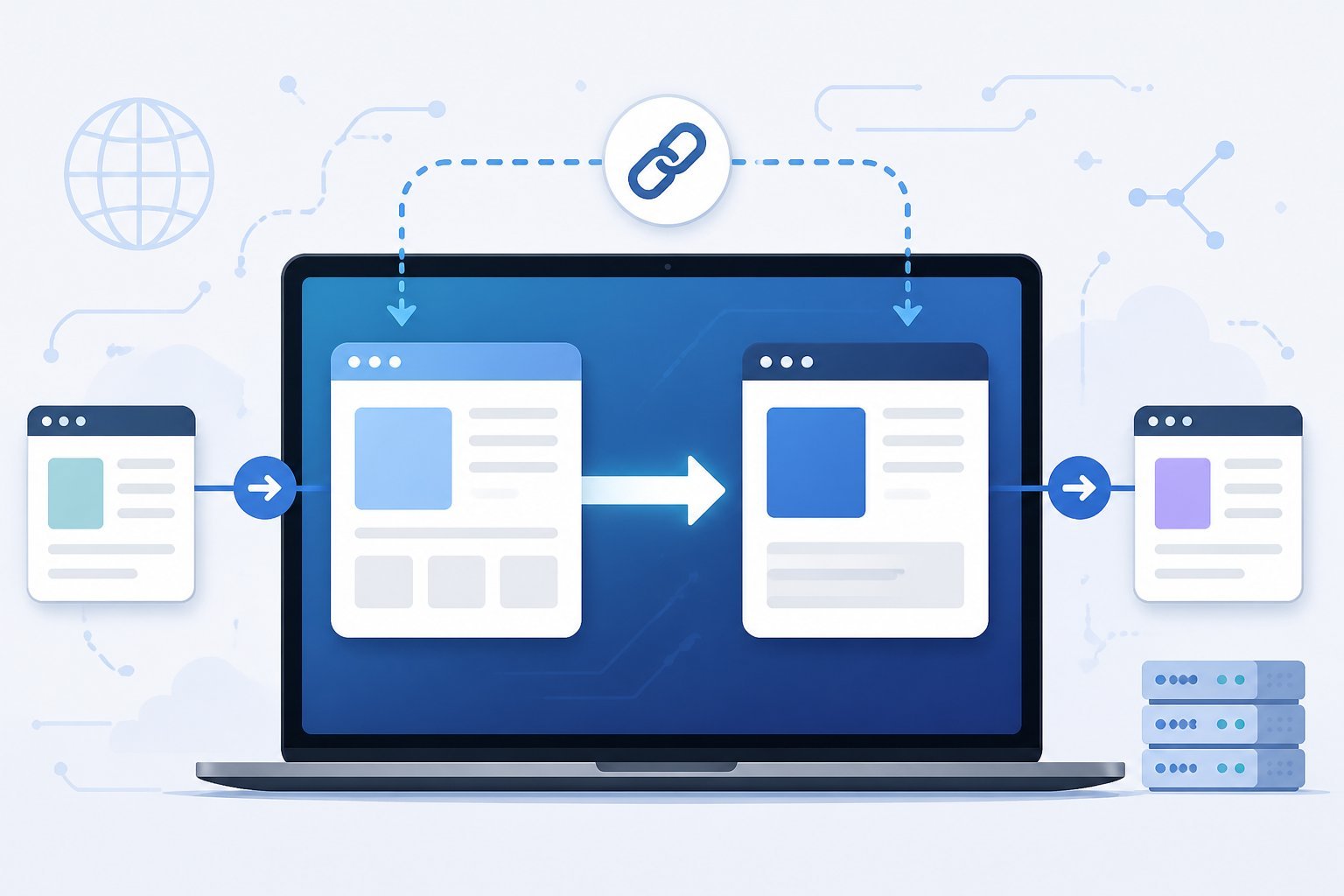
ClickFunnels gives you several ways to redirect visitors to different URLs within your funnel. You can use built-in features for form submissions, create pages that automatically redirect, or add custom code for more control.
Using the On Submit Go To Feature
The On Submit Go To feature lets you redirect visitors after they submit a form. This works when you want to collect information from someone and then send them to a different URL instead of the next step in your funnel.
To set this up, go to your form settings in the funnel builder. Look for the redirect URL field where you can paste the web address where you want people to go.
After someone fills out your form and clicks submit, they will automatically go to that URL. You should use full URLs instead of link shorteners like Bitly.
Link shorteners can cause problems with the redirect and might not work correctly. If your redirect isn’t working, try using the complete web address.
This method is useful when you want to send people to an external website, a thank you page on another platform, or a checkout page outside of ClickFunnels.
Creating Auto-Redirect Pages
Auto-redirect pages send visitors to another URL as soon as they land on the page. You can build a page in your funnel that redirects people right away without requiring them to click anything.
To create this type of redirect, add a new page to your funnel. Use custom code or a redirect element to automatically send visitors to your target URL.
Set the redirect time to zero seconds if you want instant forwarding. This approach helps you maintain consistent branding and track where your traffic comes from.
You can also use it to update old funnel links without breaking them.
Custom Redirects with JavaScript
JavaScript redirects give you the most control over when and how visitors get redirected. You can add conditions based on what checkbox someone selects, which button they click, or other user actions.
Add your JavaScript code to the page settings in ClickFunnels. You can use simple code like window.location.href = "your-url-here" to redirect people.
Make sure your code runs after the form submits if you need to save data first. This method works well when you need different redirect URLs based on user choices.
You can send people to specific pages depending on what they select in your form.
Managing and Customizing Your Funnel URLs

ClickFunnels lets you control exactly how your funnel URLs appear to visitors. You can adjust paths at different levels, create short branded links, and avoid common mistakes that break your marketing campaigns.
Changing Funnel and Step URLs
Your ClickFunnels account uses three different URL types that you can customize. The funnel path is the main URL that always directs visitors to your first step.
Step URLs control specific sections of your funnel. Page URLs handle individual landing pages within each step.
To change a funnel path, go to your funnel dashboard and click on Settings. Look for the Path section where you can enter your custom URL path.
ClickFunnels automatically adds this path after your domain name. For individual pages, click the Pages tab in your funnel dashboard.
Select the page you want to edit and update its path in the settings. This gives you complete control over how each page appears in your visitor’s browser.
Important: Always save your changes before testing new URLs. The funnel builder updates paths immediately, but you should verify each redirect works correctly before sharing links in active campaigns.
Shortening and Branding URLs
ClickFunnels Short Links creates custom, branded URLs that replace long complicated web addresses. You’ll find this app included free in every plan.
It lets you make memorable links like “yourdomain.com/offer” instead of “yourdomain.com/long-complicated-funnel-path-123”. Short Links gives you flexibility to change where links point without editing old campaigns.
If you need to update a funnel or switch domains, just change the redirect destination once. All your existing ads, emails, and social posts continue working without any broken links.
The app includes tracking so you can see how many clicks each link gets. You can run A/B tests to compare different landing pages and add UTM parameters for detailed campaign analysis.
Your Short Links dashboard keeps everything organized in one place.
Avoiding Common URL Errors
Breaking existing links is the biggest risk when changing funnel URLs. Before updating any path, write down all places where you’ve shared that link.
Check your email campaigns, social media posts, paid ads, and affiliate materials. Never delete old paths without setting up a redirect URL first.
Use Short Links to point old addresses to new destinations. This preserves your SEO rankings and keeps traffic flowing smoothly.
Test every new URL in an incognito browser window before announcing changes. Click through your entire funnel to make sure each step loads correctly.
Watch for typos in custom paths since ClickFunnels won’t automatically fix spelling mistakes.
Tracking and Optimizing Redirects for Better Results

ClickFunnels provides built-in tracking tools to measure redirect performance and run tests that improve your results. You can monitor click data and test different destinations to find what converts best for your audience.
Using Analytics and A/B Testing
ClickFunnels Short Links automatically track how many people click each redirect URL. This data shows which links get the most traffic and helps you identify your best marketing channels.
You can run split tests on your redirects to compare different landing pages. Set up two destination URLs and ClickFunnels will split traffic between them.
Watch the analytics to see which page gets more conversions. Add UTM parameters to your redirect URLs to track specific campaigns.
These tags help you see exactly where your traffic comes from in your analytics dashboard. You can track things like which social media post or email brought in the most clicks.
The analytics dashboard updates in real-time so you can make quick changes based on what works. If one redirect performs poorly, you can instantly update where it points without changing the short link itself.
Integrating Pixels and Tracking Tools
ClickFunnels lets you add tracking pixels to your redirects for deeper insights. You can attach retargeting pixels from Facebook, Google, or other platforms to track visitors who click your links.
Add your Google Analytics tracking code through the funnel settings to measure visitor behavior. Navigate to your funnel settings and paste the GA4 tracking code in the Head Tracking Code section.
Connect multiple tracking tools to the same redirect URL to gather data across platforms. This helps you build complete visitor profiles and run retargeting campaigns based on who clicked your links.
Leveraging Funnel Builder Features for Advanced Redirects
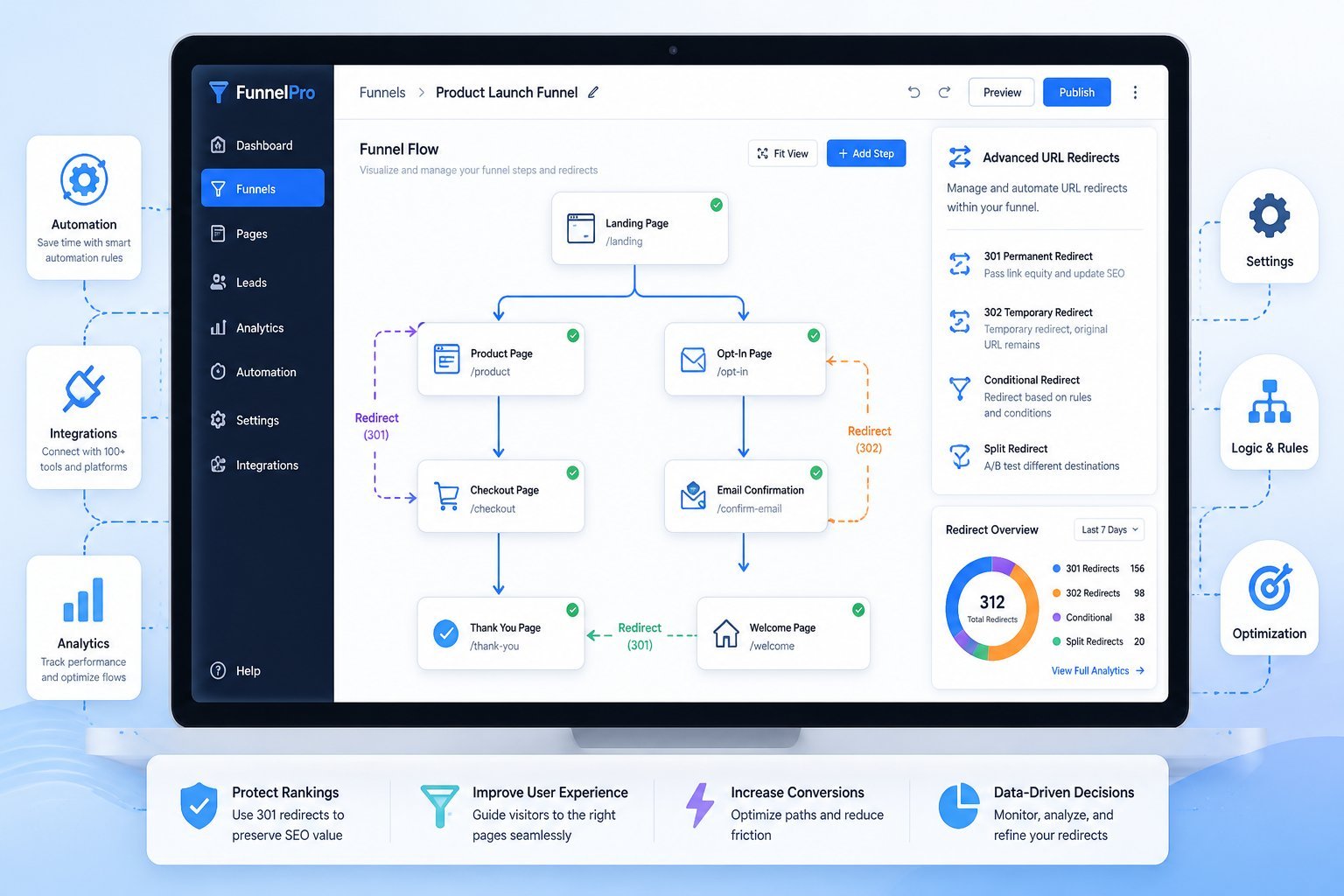
ClickFunnels offers powerful automation tools and membership features that work together with URL redirects to create smarter visitor paths. These features let you build redirects based on user actions and connect different parts of your funnel.
Automations and Workflow Triggers
You can set up automated redirects in your funnel builder by connecting them to specific triggers. When someone completes a form, makes a purchase, or clicks a button, you can automatically send them to a new URL based on that action.
The workflow system lets you create if-then rules for redirects. For example, you might redirect buyers to a thank you page while sending non-buyers to a different offer.
You can also use tags and contact data to decide where people go next.
Common automation triggers include:
- Form submissions
- Purchase completions
- Button clicks
- Specific page visits
- Email opens or clicks
These workflows run in the background without any extra work from you. Your funnel builder handles all the redirect logic automatically once you set up the rules.
Integrating Community and Membership Areas
Your ClickFunnels community and membership areas can use custom redirects to control access. You can send members to specific content based on their membership level or completion status.
When someone joins your community, you can redirect them to a welcome page or orientation funnel. Members who finish a course or training can automatically get redirected to the next level or a graduation page.
You can also protect certain pages by redirecting non-members away from restricted content. The redirect happens instantly based on login status and membership permissions.
Connecting With the ClickFunnels Community and Support

When you run into problems with URL redirects or need advice on best practices, ClickFunnels offers multiple ways to get help from both official support channels and fellow users.
Finding Help With URL Redirects
You can reach ClickFunnels support through several channels when you need technical help. The easiest way is to email support@clickfunnels.com or open a ticket at support.myclickfunnels.com.
You can also call them directly at (208) 323-9451 if you prefer to speak with someone.
The ClickFunnels Help Center provides detailed articles and guides about URL redirects, domain forwarding, and funnel pathnames. Many users find quick answers using the AI bot available on the support site.
This tool can help you solve common redirect issues without waiting for a response.
For faster help, make sure you include specific details about your redirect problem. Tell support which URLs you’re trying to redirect, what error messages you see, and what you’ve already tried.
Learning From Other Funnel Builders
The ClickFunnels community has over 300,000 members who share tips and solutions daily. You can join the official ClickFunnels Facebook group or access the Community App included free with every plan.
These spaces let you connect with entrepreneurs and marketers who have likely faced similar URL redirect challenges. Other funnel builders often share their redirect setups and troubleshooting steps in community discussions.
You can post questions about your specific situation and get real-world advice from people who use the platform every day. The community also shares best practices for organizing funnel URLs and avoiding common redirect errors.